how to map keys in mac
we can map any key or shortcut in our mac. here is a quick way and the logic behind this.
if you try to do it using just keybindings in keyboard shortcuts for an app, it might not work because of mac’s behavior of not taking the application directly (some complex reason behind it, i don’t remember).
but if you use automator (a powerful script wrapper), then it’s a minute game. i will show you how.
suppose you want to bind visual studio code (or any app) to a non-binded key (important because you can’t overwrite command + v). technically you can, but leave that for later, peanut torvalds.
- open automator.
- if an app window pops up, close it and open it from the dock.
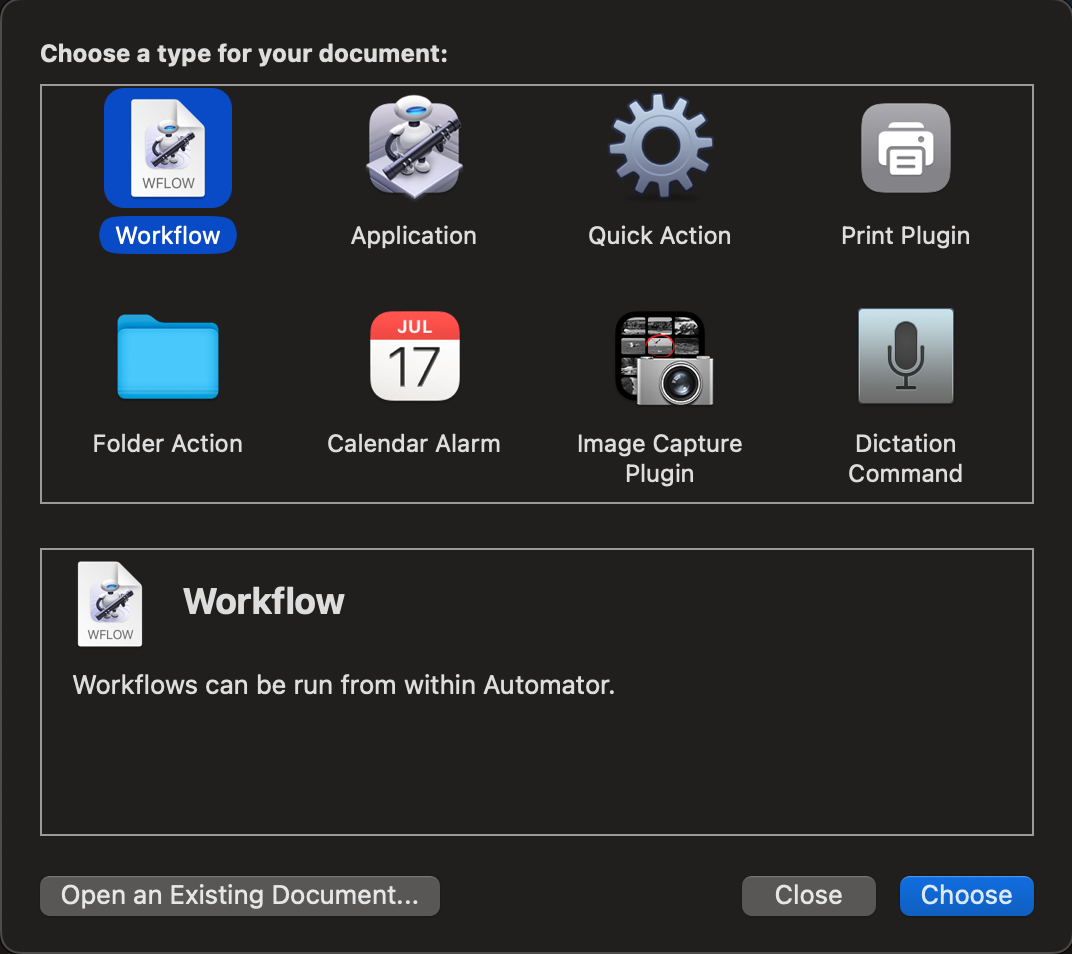
- click on quick action.
- set these for an easier life:

- search for launch application and double-click/drag it.
- find your application in the dropdown menu.
- hit save ->
command + s. - name it whatever you want.
now, to bind it:
- open keyboard shortcuts in settings.
- go to services.
- drop down the general tab and select your shortcut name.
- right-click on the - (none) and press the key binding you need.
- save it and roll.
quick info
- try to avoid default keybindings, or you will waste your 30 mins like me figuring out overriding.
- go for simple bindings like f11, f12, f13.
how to find f11 key in non-existing physical keyboard
very simple:
- press fn + f1. it will appear as f1 on screen but behaves like f11.
- these keys are never bound to anything, so you have a 10-key open window.
- do whatever you want to do.